
Building supplement tracking into NutraLog
How supplement logging works in NutraLog: a saved list, doses that scale from the label, label scan or typed entry, and a check for what you logged today.
Ante Vuletić · 2026-11-08
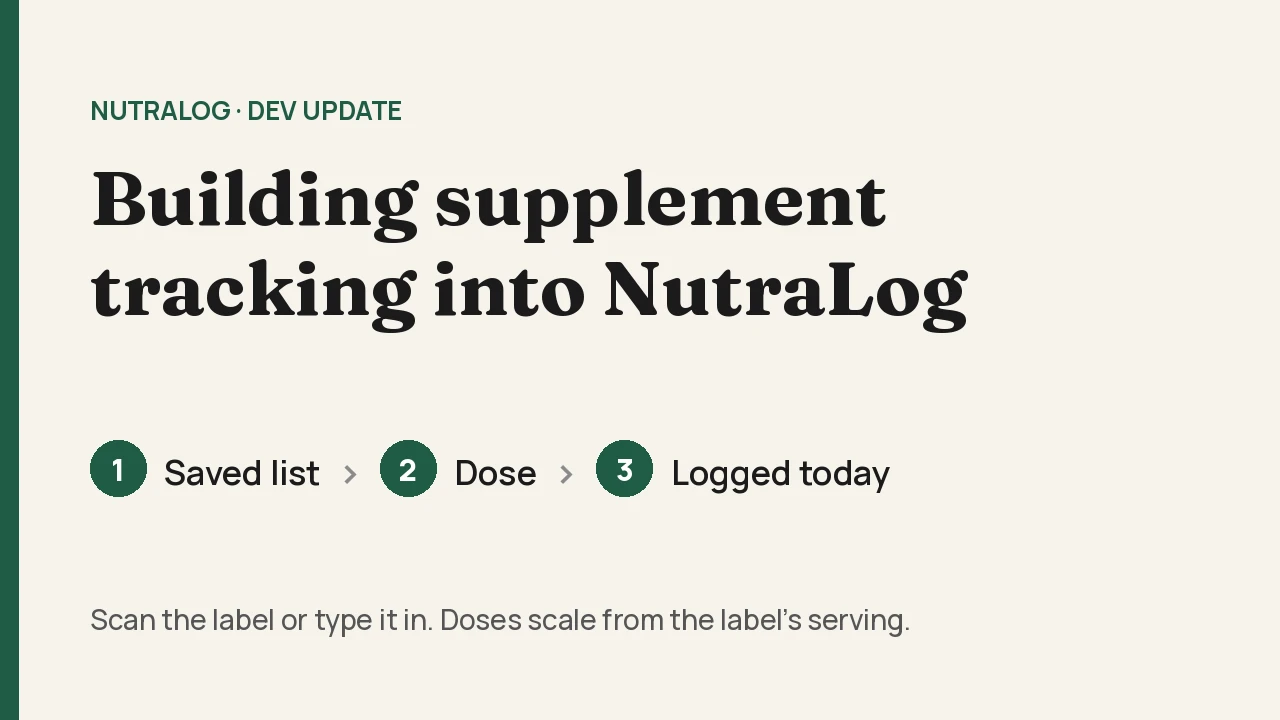
NutraLog now has a Supplements tab, next to Log a meal in the same dialog. It shipped on November 5. This post covers how it works and the design choices behind it: what gets saved, how a dose is counted, and how the screens match meal logging.
NutraLog records what you enter or what a label says. It does not tell you which supplements to take or how much, and it does not check for interactions. A label scan copies printed numbers, so compare them with the label before you save. This is not medical advice.
What shipped
- The tab opens on your saved supplements, with Add supplement at the top.
- A new supplement starts with a required name. Type the nutrients in, or use Scan label or Upload to fill the fields from a photo, then edit before saving.
- Tap a saved supplement, enter how much you took, and log it to today.
- A green check marks every supplement you have already logged today.
Saved supplements and logged doses are separate
A saved supplement is the label: a name, the serving the numbers apply to, and the nutrients for that serving. A logged dose is what you took on a given day. Keeping them apart means you can fix a typo or a number on a saved supplement without changing doses you already logged.
A logged dose is stored the same way as a meal. So the day's calories and macros include it everywhere meals already count: Today, Overview, Insights, and a coach's day view if you share your log with a coach. Fiber and the vitamins and minerals from the dose are included on Overview, the Micronutrients page, and Insights. When the dose has sodium or added sugar, those amounts show on the Micronutrients page under Limits, and they do not change the letter grade. That avoids a second set of totals that would have to stay in sync with the first.
Doses do not count toward Full Day Log, the achievement for logging three meals in a single day, and Today lists them on their own, for example "2 plates in · 1 supplement".
Doses scale from the label's serving
Each saved supplement has an amount and a unit: capsule, tablet, softgel, scoop, g, or serving. The nutrients apply to that amount, such as 1 capsule, 2 tablets, or 5 g. When you log, the app asks "How many capsules?" or "Grams taken" and scales the nutrients to match. Two capsules of a product saved per capsule doubles them. One capsule of a product labeled per 2 capsules halves them. Decimals work, so half a scoop is fine.
If a label prints a count and a weight, like "1 capsule (500 mg)", the scan is set up to use the count, because you take capsules, not milligrams. A dose with zero calories still adds its nutrients to the day.
Scan the label or type it in
The form puts the name first, then the serving, then calories, protein, carbs and fat, then a Vitamins and minerals section. That section lists the same 13 nutrients NutraLog tracks for food: fiber, potassium, calcium, iron, magnesium, zinc, vitamins A, C, D and B12, folate, sodium, and added sugar. Leave a field empty if the label does not list it.
Scan label opens the camera and Upload takes an existing photo. The scan fills in the name, serving and printed nutrients, then the app says "Label read. Check the name and serving, then save." Nothing is stored until you press Save supplement. Unlike food labels, where NutraLog may estimate micronutrients the panel leaves out, a supplement scan copies only what is printed.
A supplement scan uses one AI scan, like a food label. Typing a supplement in, or logging a saved one again, uses none. The free MyFitnessPal alternatives post explains the free scan allowance. Your list is saved on the device first and syncs when you are online, so typing and logging work offline. Scanning needs a connection.
Same navigation as logging a meal
Supplements use the step bar and breadcrumbs from food logging, so there is nothing new to learn. Adding one shows Supplements, then New. Picking a saved one shows Supplements, then its name. Edit supplement opens one level deeper, and that step is labeled Edit. Tap a breadcrumb to go back. Save stays off until the name and numbers are filled in, and Log stays off until the dose is more than zero.
A check for what is already logged today
The green check answers one question: have I logged this one today? It means at least one logged dose of that supplement today. Today is your local calendar day, the same one meals use, so a new day starts with no checks. Deleted doses and other days do not count.
Each new dose stores the id of the saved supplement it came from, and the check matches on that id. Renaming "Vitamin D" to "Vitamin D3 2000 IU" keeps today's check. Doses logged before the id existed match by name.
What it does not do
This release is a log. There are no reminders, schedules, streaks, or suggestions about what to take, and no medication or interaction features.
For builders
- Logged doses are meal rows with scanMode "supplement", so existing totals, charts and coach views include them without a second code path.
- The saved list is a new per-user Supplement table with row level security, deleted with the account. Saved supplements also live in the browser's local database and sync by updatedAt, so an older server copy does not overwrite a newer local edit.
- The supplement scan has its own prompt that returns a serving unit and count instead of a gram basis, and accepts only nutrients printed on the panel.
The Supplements tab is where you already log food. For how fiber and the vitamins and minerals feed the daily grade, see how to read your diet score.
Open NutraLog and log your next meal.
Get started free